Transfer eSIM to a New iPhone: Options and Fixes
Getting a new iPhone? Move your eSIM with Quick Transfer, a carrier activation, or a fresh QR code. Requirements and fixes, per Apple on 28 Nov 2026.

Short answer
Use Quick Transfer in Settings, Cellular, Add eSIM. Or ask your carrier to activate the eSIM with a prompt, link or new QR code. Quick Transfer needs a supporting carrier and iOS 18.4 or later on both of your iPhones.
Upgrade day goes better when you decide how the eSIM will move before you switch phones. Apple documents several routes, and the right one depends on your carrier and whether the old phone still works. The steps below follow Apple Support, read on 28 Nov 2026.
What are your options?
| Route | When it fits | What you need |
|---|---|---|
| Quick Transfer | Both phones are iPhones, carrier supports it | Same Apple Account, Bluetooth, iOS 18.4 or later |
| eSIM Carrier Activation | You buy or set up through the carrier | The carrier's prompt or a link |
| QR code or manual details | The carrier or provider sends a new code | Wi-Fi and the code |
| Carrier app | Your carrier has an app with eSIM transfer | The app and your login |
| Convert a physical SIM | You have a physical SIM and a supporting carrier | Carrier support |
If you have a travel plan from a provider that is not a carrier, a new code is often the route, since not all providers support transfer.
How does Quick Transfer work?
Apple's steps, on the new iPhone:
- Settings, Cellular.
- Tap Set Up Cellular or Add eSIM.
- Choose a plan to transfer. If no numbers show, tap Transfer From Nearby iPhone.
- Confirm on the previous iPhone.
- Wait for activation. The previous SIM deactivates.
- If a banner asks you to finish setting up your carrier's cellular plan, tap it and complete the transfer on your carrier's website.
Both iPhones must be signed in with your Apple Account, nearby with Bluetooth on, and the previous one must be unlocked. For more, see how to transfer eSIM from one iPhone to another.
What if Quick Transfer is not available?
Use the carrier's activation. Apple says that eSIM Carrier Activation usually happens when you buy from a carrier and provide plan details. If your carrier assigned an eSIM when you bought the iPhone, follow the setup prompts. If you ask for an eSIM after setup and the carrier sends it digitally, tap the Carrier Cellular Plan Ready to Be Installed notification, or find it in Settings, then tap Continue and make a call to check connectivity.
If the carrier gives you a link, tap it, tap Allow on the Activate New eSIM prompt, then tap Continue. If it sends a QR code, scan it with the Camera app and tap Cellular Plan Detected, or open Settings, Cellular, Add Cellular Plan, Enter Details Manually and type the details.
What if your new iPhone has no SIM tray?
Apple's page on identifying your iPhone says the iPhone 14 models have no SIM tray in the United States, and have a tray on the left side elsewhere. The page also lists models with no tray in other regions. If your new phone has no tray, you cannot move a physical SIM into it, so arrange the eSIM first. Ask your carrier to convert the physical SIM, if it supports that, or activate a new eSIM.
What should you do before the switch?
- Update both iPhones.
- Sign in to the same Apple Account.
- Check your carrier's page for eSIM transfer support.
- Keep the old phone until the new one has service.
- Note any travel plans that need a new code.
- Back up the phone as you normally would.
Do not erase the eSIM on the old phone first. Apple's erase page says you would then need a new eSIM from your carrier, and erasing does not cancel your plan.
What about travel eSIMs on the old phone?
A travel plan installed on the old iPhone may not move with Quick Transfer, since support depends on the provider. Ask the provider whether it supports transfer, or whether it will issue a new QR code. If you are close to a trip, it can be easier to buy a plan on the new phone than to move the old one. Country pages, such as /thailand/, list plans and facts we track, with the date each price was checked.
How long does a transfer take?
Apple does not give a fixed time on its setup page. In practice you wait for the plan to activate on the new iPhone, and the page tells you the previous SIM deactivates at that point. Plan a few minutes with both phones in your hands, Wi-Fi on and no other task, rather than starting a transfer as you leave for the airport. If the carrier needs you to finish on its website, allow extra time for that step.
Should you transfer before or after restoring the backup?
Either order can work, but test the line once the phone is fully set up. Apple's setup page says that during first setup the Set Up Cellular screen lets you use a QR code, and you can also transfer later from Settings, Cellular. If the transfer prompt does not appear during setup, finish the setup and use the Settings route. Then confirm the line is on, labelled and chosen for data.
Is a physical SIM still an option?
Yes on models with a tray. Apple's identification page lists which iPhone models have a tray and where it sits, with regional differences. If your carrier does not support eSIM transfer, a physical SIM moved to the new phone is the fallback, provided the new phone has a tray and the same SIM size. Check the page for your exact model.
What if something goes wrong?
- The phone shows No SIM: restart, then check Settings, Cellular.
- A banner asks to finish on the carrier's site: tap it and follow the steps.
- Nothing works after transfer: contact the carrier, who can reissue the eSIM.
- You see two lines and expected one: check which line is on, and turn off the unused one.
For a clean install on a new phone, read how to set up eSIM on iPhone. If you are leaving iPhone, see transfer eSIM from iPhone to Android. The phone checker can help with support questions.
Short checklist
- Choose the route: Quick Transfer, carrier activation or new code.
- Update both phones.
- Move the eSIM, then test.
- Keep the old phone until the new one works.
- Handle travel plans separately.
Read from Apple Support on 28 Nov 2026.
Frequently asked questions
Do I need my carrier to move an eSIM to a new iPhone?
Not always. Quick Transfer works between two iPhones when the carrier supports it and both run iOS 18.4 or later. Otherwise the carrier can activate the eSIM through its own prompt, a link or a QR code.
Can I convert my physical SIM to an eSIM on the new iPhone?
Apple says that if your carrier supports it, you can convert a physical SIM to an eSIM on the same iPhone, and eligible carriers can convert your SIM during Quick Transfer. Ask your carrier.
Will my old iPhone still have service afterwards?
No. Apple says the plan deactivates your previous SIM when it activates on the new iPhone. Check that the new phone works before you reset or give away the old one.
What if my new iPhone has no SIM tray?
Some models have no tray in certain countries, for example iPhone 14 models in the United States, per Apple's identification page. Those phones use eSIM, so plan the transfer or activation before you move.
Sources
- Set up an eSIM on iPhone, Apple Support (2026)
- Identify your iPhone model, Apple Support (2026)
- How to erase the eSIM on your iPhone or iPad, Apple Support (2026)
Keep reading
eSIM Android: Which Phones Work and How to Set Up
Which Android phones support eSIM and how to set one up.
eSIM Card Explained: Is There a Physical eSIM Card?
An eSIM card usually means a QR code or activation page, not a real card.
eSIM Data Roaming: When to Turn It On and Off
A travel eSIM sometimes needs data roaming on, while your home line should keep it off.

Best eSIM for International Travel: What to Compare
No single eSIM suits every route.

Best eSIM: How to Pick One for Your Own Trip
The best eSIM depends on your route, phone and habits.
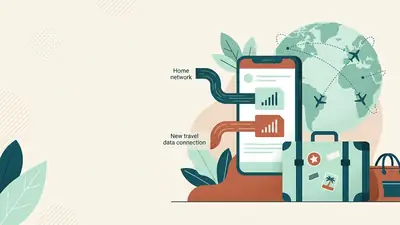
eSIM Dual SIM: Keep Your Home Number and Add Travel Data
Dual SIM lets one phone hold your home line and a travel eSIM.