Transfer eSIM From Android to iPhone: Apple Steps
Move an eSIM from Android to iPhone with a supported carrier: you need an iPhone 11 or later on iOS 26 and Android 16 or later. Steps from Apple.
Short answer
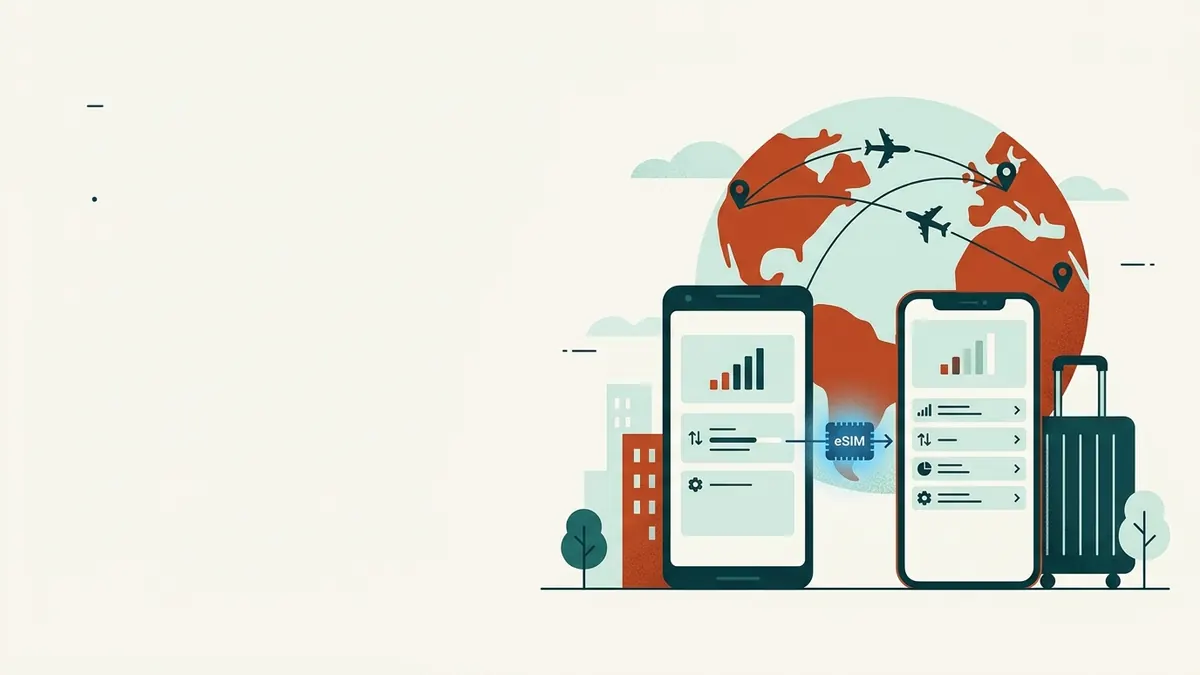
Apple lets you move an eSIM from Android to iPhone if your carrier is supported. You need an iPhone 11 or later on iOS 26 or later and an Android phone on Android 16 or later. Both need Wi-Fi and Bluetooth on.
Switching from Android to iPhone used to mean asking your carrier to issue a new eSIM. Apple now documents a direct transfer for supported carriers. This guide gives the requirements, the steps and the fallbacks. It follows Apple Support, read on 28 Nov 2026. Carrier lists and software versions change, so check Apple's page for your country before you start.
What do you need?
Apple's page lists these requirements.
- A supported carrier. Apple's page lists carriers by country, including AT&T, Cricket, FirstNet, T-Mobile, Verizon and Xfinity Mobile in the U.S., and carriers in other countries including Canada, Germany, France, Japan and the UK. Check the page for your country, since lists change.
- An iPhone 11 or later running iOS 26 or later.
- An Android smartphone running Android 16 or later. Apple says to confirm compatibility with your manufacturer.
- Wi-Fi on both phones, with Bluetooth enabled.
How do you transfer in Settings?
On an iPhone that is already set up:
- Open Settings, tap Set Up Cellular, then tap Transfer from Android. If you already have a SIM, go to Cellular, tap Add eSIM, then tap Transfer from Android.
- Scan the iPhone's QR code with the Android camera.
- On the Android phone, select the phone number and tap Transfer.
- If asked, tap Yes to make the transferred eSIM your primary.
- When the transfer finishes, tap Done, then OK on the iPhone.
- Place a phone call to confirm cellular connectivity.
Can you do it during iPhone setup?
Yes. Apple says that if both devices are compatible, you can transfer the eSIM during iPhone setup without the Move to iOS app. The setup flow shows the same QR code. If you skip it, the Settings route above is available later.
What if the QR code will not scan?
Apple gives a manual route.
- On the iPhone, tap Other Options under the QR code.
- On the Android phone, go to Settings, Google services, All services, Pair with iPhone or iPad, then Transfer eSIM.
- Enter the session ID and pairing code shown on the iPhone, tap Next, select the number and tap Transfer.
- Finish on the iPhone as in the steps above.
Menu names on Android can differ by maker, so look for the same wording in your phone's settings search.
What if your carrier or phone is not supported?
Apple says to contact your carrier. The carrier can activate the eSIM through eSIM Carrier Activation or by giving you a QR code, and the same applies if the transfer methods above fail. You can also set up a new plan on the iPhone with the routes in how to add eSIM to iPhone.
| Situation | Route |
|---|---|
| Supported carrier and phones | Transfer from Android in Settings or at setup |
| Supported carrier, QR code fails | Session ID and pairing code route |
| Carrier not on the list | Ask the carrier for activation or a QR code |
| Travel eSIM from a provider | Ask the provider for a new code |
What about travel eSIMs?
Apple's list names carriers. A travel eSIM from a provider that is not on the list may not move this way, and we found no official source that covers every provider. Ask the provider whether it supports moving to a new phone, or whether it can reissue a code. If a trip is near, it can be simpler to install a fresh plan on the iPhone.
What do you do before the switch day?
- Update both phones to the versions Apple names: iOS 26 or later on the iPhone, and Android 16 or later.
- Check your carrier on Apple's list for your country, since lists differ by country.
- Charge both phones and find a place with Wi-Fi.
- Note your account details, in case the carrier asks you to confirm the transfer.
- Leave the Android phone's SIM active until the transfer is done.
Doing this the day before is wiser than doing it at the shop counter, since a failed transfer can leave you with no line for a short time and a carrier visit may be needed.
What if you only use a data plan on the Android phone?
A data-only plan from a provider that is not on Apple's carrier list will probably not move this way. Ask the provider for a new code for the iPhone, and keep the old plan on the Android phone until the new one works. If the plan is nearly used up, it may be easier to buy a fresh plan on the iPhone and let the old one expire.
What happens to the Android phone?
Apple says the SIM on the Android phone deactivates after the eSIM transfers. Do not reset the Android phone until the iPhone has service. If you want a record of the plan, keep the carrier's confirmation or account page.
For moving the other way, read transfer eSIM from iPhone to Android. For iPhone to iPhone, read how to transfer eSIM from one iPhone to another.
How do you pick a plan afterwards?
If you plan a trip on the new iPhone, compare plans on data, validity days, network, hotspot rules, number and the price on the checked date. Each country page, such as /thailand/, shows a dated price table.
The phone checker can confirm your iPhone model, and the guides list more topics.
Short checklist
- Check your carrier on Apple's list.
- iPhone 11 or later on iOS 26 or later, Android 16 or later.
- Wi-Fi and Bluetooth on both phones.
- Settings, Cellular, Add eSIM, Transfer from Android.
- Scan the QR code on the Android phone.
- Test a call before resetting the Android phone.
Read from Apple Support on 28 Nov 2026.
Frequently asked questions
Which phones can transfer an eSIM from Android to iPhone?
Apple's page says an iPhone 11 or later running iOS 26 or later, and an Android phone running Android 16 or later. Confirm Android compatibility with the phone's maker, and check that your carrier is on Apple's list.
What if my carrier is not supported?
Apple says to contact your carrier. They can activate the eSIM using eSIM Carrier Activation or by giving you a QR code. The same applies if the transfer methods fail.
What happens to the Android SIM after the transfer?
Apple says the SIM on the Android phone deactivates after the eSIM transfers to the iPhone. Test a call on the iPhone before you reset or give away the Android phone.
Can I do the transfer during iPhone setup?
Yes. Apple says that if both devices are compatible, you can transfer the eSIM during iPhone setup without the Move to iOS app. You can also do it later from Settings, Cellular.
Sources
- Transfer your eSIM from Android to iPhone, Apple Support (2026)
- Set up an eSIM on iPhone, Apple Support (2026)
- Transfer an eSIM and data from your iPhone or iPad to an Android device, Apple Support (2026)
Keep reading

eSIM Not Working Abroad: A Step-by-Step Fix List
How to fix a travel eSIM that has no data abroad.
eSIM QR Code: How to Scan, Save and Stay Safe
An eSIM QR code installs your plan when you scan it in Camera or Settings.

eSIM Refund: What Providers Say and How to Ask
eSIM refund rules differ by provider and depend on whether the plan was installed or used.

Best eSIM: How to Pick One for Your Own Trip
The best eSIM depends on your route, phone and habits.

Best eSIM for International Travel: What to Compare
No single eSIM suits every route.
eSIM Scams: How to Spot Fake Offers and Unsafe QR Codes
Watch for fake QR codes, unexpected texts and payment demands.